Chatbot analytics
See how your business is doing, and what customers ask
Ask My Bot Analytics shows your sales, orders, visits and conversion against the period before, when you're busiest, what sells and what people look at, with a sales report you can print or export. It also lists the questions your bot couldn't answer, so you can answer them in one step. It is included on every active plan.
What you learn
Real demand
Recent questions show the exact words customers use, so you can add the details they look for.
Gaps in your content
Unanswered questions list what the bot couldn't answer from your sources, ready to answer in one step.
Answer quality
Likes, dislikes and like rate show which answers help and which need clearer source content.
Honest visit counts
Each browser counts once a day, and your own team, search engines, link previews and bots are left out.
Sales at a glance
With Kiosk orders, Sales, Orders, Average order and Conversion show how the period went and whether it's up or down.
When to staff up
Busiest hours shows the hours of the week when orders come in, from the order times themselves.
What to promote
Top items and Most viewed show best sellers, and products people open often but rarely order.
Leads in context
On Pro and higher, the Leads card opens the leads captured from conversations.
Improve your bot from analytics
Step 1
Pick a period
Select your bot and open Analytics. Choose Today, Yesterday, Last 7 days, Last 30 days, Last 90 days, This month, Last month or your own dates, up to 90 days.
Step 2
Read the cards
With Kiosk orders: Sales, Orders, Average order, Visits and Conversion, each with its change against the period before. A chat-only bot shows Visits, Questions, Unanswered and Leads.
Step 3
Find your busy times and best sellers
Charts show every figure by day, or by hour for a single day. Busiest hours shades each hour of the week, and Top items and Most viewed show what sells and what people look at.
Step 4
Print or export the sales report
Sales report breaks the period down by how orders came in, payments, customers, taxes, cancellations and day. Print it, save it as a PDF, or export the orders as CSV.
Step 5
Answer what was missed
In Unanswered questions, click the answer action beside a question, or select several that share an answer, write the answer and save it. It becomes training knowledge for future chats.
Step 6
Improve your sources
Use Recent questions and disliked answers to spot missing prices, hours or policies, then update the source in Training or refresh your website import.
Use analytics to
- Close the day or the month with a sales report for your accountant or partner.
- Check which products, services or policies people ask about most.
- Find missing prices, hours, delivery areas or contact details.
- See whether a QR code, link or widget is bringing visitors.
- Review the bot weekly and keep its answers current.
Good to know
- A shared device such as a counter tablet counts once a day however many customers use it; the Orders card shows how many ordered.
- Daily history builds up from when it is recorded; earlier lifetime totals are not assigned to past days. Most viewed counts product opens from October 2026.
- The period resets to Last 7 days when you reload the page.
- Customer names and contact details appear only in the sales report's Customers list, CSV and printout, which only the bot owner and admins can open.
Frequently asked questions
What does Ask My Bot analytics show?
For a bot that takes Kiosk orders: sales, orders, average order, visits and conversion against the period before, charts for each, busiest hours, top items, most viewed products and a sales report you can print or export. For every bot: visits, questions, unanswered questions to answer, likes and dislikes. Recent questions and Unanswered questions list the latest questions first.
What is in the sales report?
How orders came in (delivery, pickup, dine-in, room or table, counter), payments (online, cash, paid at the counter, not paid yet), named and repeat customers with your top customers, items subtotal, delivery fees, each tax such as CGST and SGST, cancellations, and sales for each day. Print it or save it as a PDF, or export the period's orders as CSV.
What do Busiest hours and Most viewed show?
Busiest hours shades each hour of each weekday by how many orders came in (visits for a chat-only bot), so you can plan staff and stock. Most viewed lists the products whose details visitors opened most, with how many of each were ordered, so you can spot items people look at but rarely buy.
Which plans include analytics?
Analytics is included on every active plan, including Free. Bot admins can use it too.
How are visits counted?
A visit is someone opening the bot page, opening the website widget, or going straight to Kiosk, for example from a table QR code. Each browser counts once a day, so refreshing or switching between Chat and Kiosk adds nothing. The widget counts only when opened, not on every page of your site.
Are bots and the owner's team counted as visitors?
No. The bot owner, admins and collaborators aren't counted while signed in, and neither are search engines, link previews such as WhatsApp or Slack, or automated tools. Private bots don't record visits.
What period can I see?
Today, Yesterday, the last 7, 30 or 90 days, this month, last month, or your own dates up to 90 days. Every card, chart and report covers the same period and is compared with the period just before it, for example the 7 days before. Days follow your device's time zone.
How do I fix an unanswered question?
Open Analytics → Unanswered questions, click the answer action, enter a complete answer and save it. The answer becomes training knowledge, so the bot can use it next time.
See how it works in the app
Illustrative app views with fictional businesses, contacts and sample data. Select an image to view it full size.
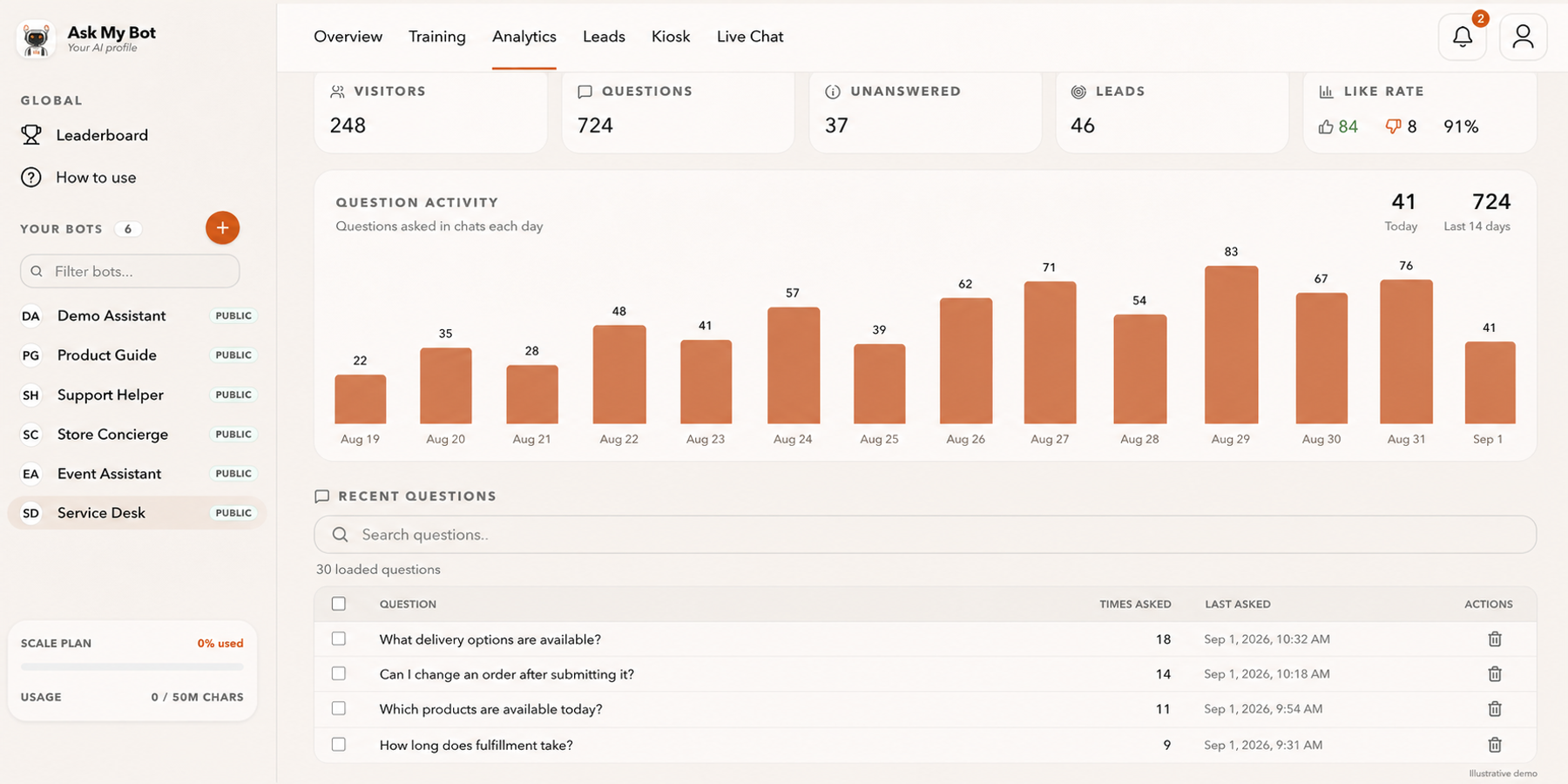
See how the business is doing
Analytics compares sales, orders, visits and conversion with the period before, on every active plan. The pictured numbers are fictional demonstration data.
Explore this workflow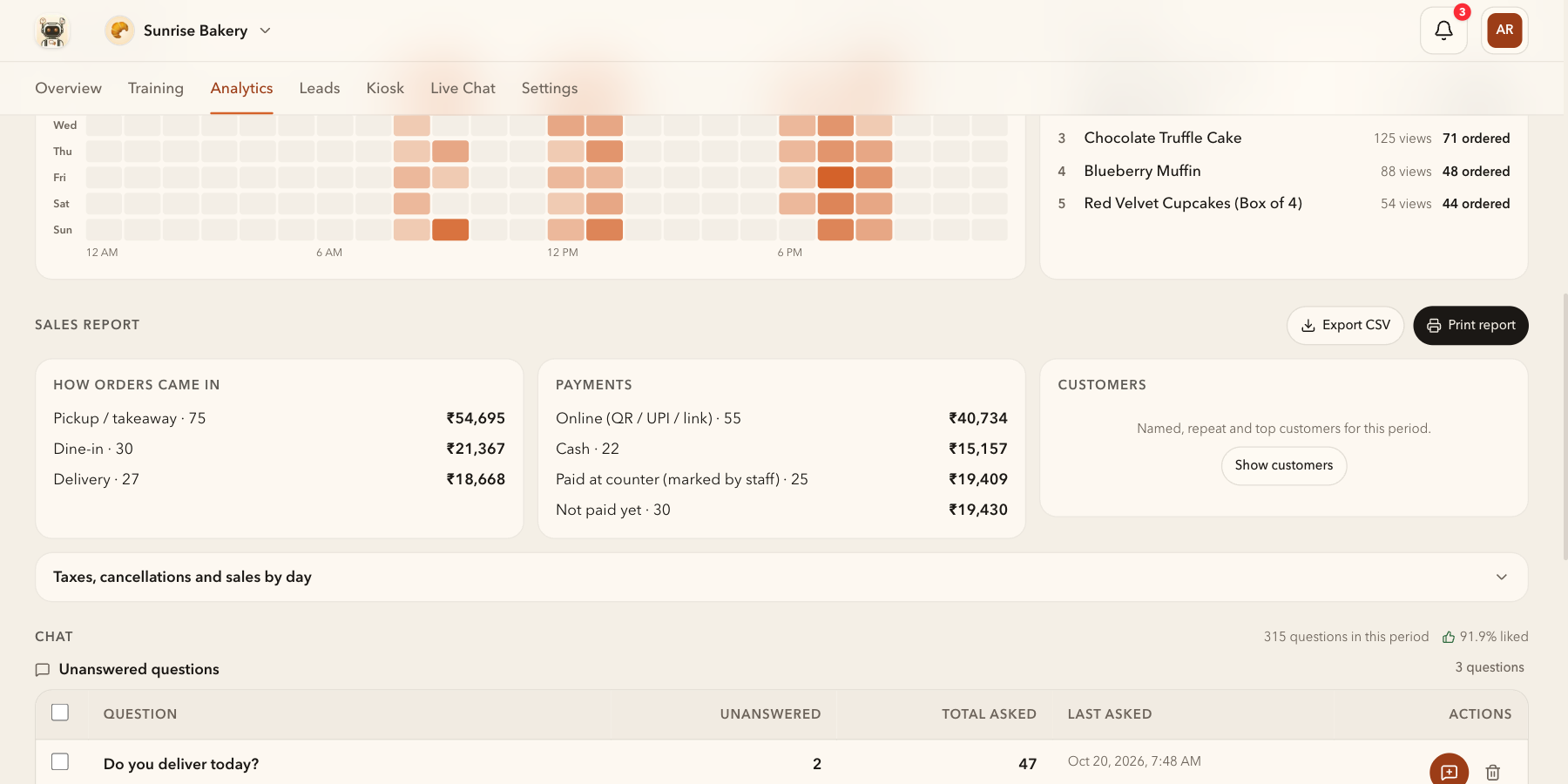
Find your busiest hours and best sellers
Busiest hours shows when orders come in, Most viewed what people look at, and the Sales report how orders came in and were paid, ready to print or export. The pictured numbers are fictional demonstration data.
Explore this workflowExplore the chatbot platform
Build around the knowledge and workflow you need
Customer support chatbot
Answer routine support questions and hand off when needed.
Business chatbot
Support visitors, leads, and teams with business knowledge.
Knowledge base chatbot
Turn FAQs and approved knowledge into direct answers.
PDF chatbot
Turn documents into grounded, searchable answers.
Website chatbot
Import site content and answer visitors on-page.
Private chatbot
Restrict internal knowledge to approved users.
Live API chatbot
Combine indexed knowledge with fresh endpoint data.
Lead-generation chatbot
Answer first, then capture qualified follow-up details.