Workspace Guide
How to use Ask My Bot
Ask My Bot helps you turn your documents, images, website pages, and notes into an AI assistant. Use this guide to create a bot, train it with knowledge, test its answers, publish it, and improve it from analytics.
The basic workflow
Step 1
Create your first bot
Sign in, click Create bot, then paste a website URL for Magic Prefill or start with a bot name if you want to add content manually.
Step 2
Add knowledge
Open Training and add PDFs, DOC/DOCX, RTF/TXT, XLSX, CSV, pasted text, images with OCR, website pages, or Live API sources on supported plans. If your website changes later, refresh the website source without manually deleting old imported pages.
Step 3
Customize behavior
Open the bot's Settings tab. Under Bot, Profile holds the name, logo, public URL, business type and business contact, including opening hours and location; Chat & appearance holds the opening message, starter questions, default view and colours; Website widget holds the widget type, colour, teaser and allowed domains; Access & team holds public or private and your team; Notification sound picks the sound for this bot's new orders, leads and messages, or mutes it. Set Details to collect in Settings → Leads → Lead capture. The owner can change the public URL from Profile → Change URL, at most once every 7 days.
Step 4
Test real questions
Open the public bot page and ask the same questions a visitor, customer, or team member would ask. Add more training content if an answer is missing or weak.
Step 5
Share or embed
Use Overview → Share assets to copy the public link, download the QR code or a printable storefront sign, preview the widget, or copy the install script for your website.
Step 6
Improve from analytics
Use Analytics and Leads to review visitors, questions, unanswered questions, feedback, captured details, and lead status. Keep source content current by editing documents or refreshing imported websites from Training.
If you have no bot yet
Start with Create bot. A website URL can prefill the bot, or you can create a blank bot and add knowledge from Training.
If answers are weak
Add clearer source content, update indexed text, include pricing and policies explicitly, and review unanswered questions.
If you want leads
Add Details to Collect such as email, phone, company, table number, order items, budget, or appointment request.
What to prepare before setup
Source content
Gather the files and pages that already answer common questions: pricing, services, menus, policies, bios, product specs, event details, FAQs, and contact steps. Clear source content creates clearer bot answers.
Launch goal
Decide whether the bot should answer public visitor questions, collect leads, support internal users, or demonstrate a profile. That decision shapes visibility, lead fields, and the best place to publish the bot.
Common questions
Do I need to create a bot before using Ask My Bot?
Yes. A bot is the workspace where your knowledge, public page, widget, analytics, and leads are managed.
What content can I add to a bot?
You can add PDFs, Word files, text files, spreadsheets, CSVs, pasted text, images with OCR, website pages, and Live API sources on supported plans. Website imports are grouped as refreshable sources in Training.
Can I refresh website content after my site changes?
Yes. Open Training and refresh the website source. Ask My Bot starts a new crawl for the same site and replaces the previous website-imported pages after the new crawl succeeds.
Can I test my bot before sharing it?
Yes. Open the public bot page after training it and ask realistic questions. You can keep improving the source content before sharing widely.
Where do I see what visitors ask?
Use the Analytics tab to review visitors, top questions, unanswered questions, feedback, and answer coverage. Use Leads for captured contact details and custom fields.
Related guides
See how it works in the app
Illustrative app views with fictional businesses, contacts and sample data. Select an image to view it full size.
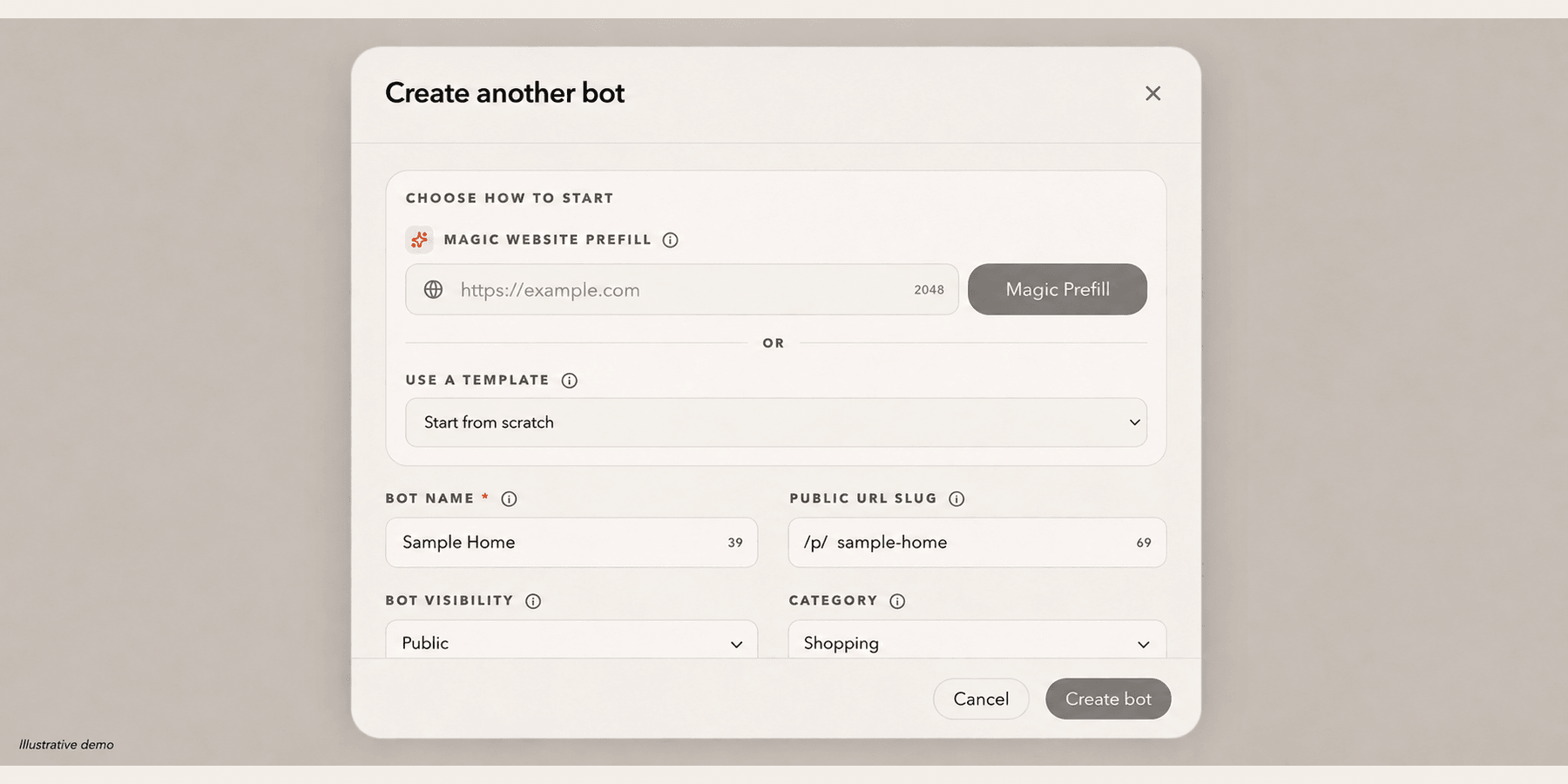
Create a bot without coding
Start with a website URL or a bot name, then add your knowledge in Training. The owner can change the public URL later from Settings → Bot → Profile.
Explore this workflow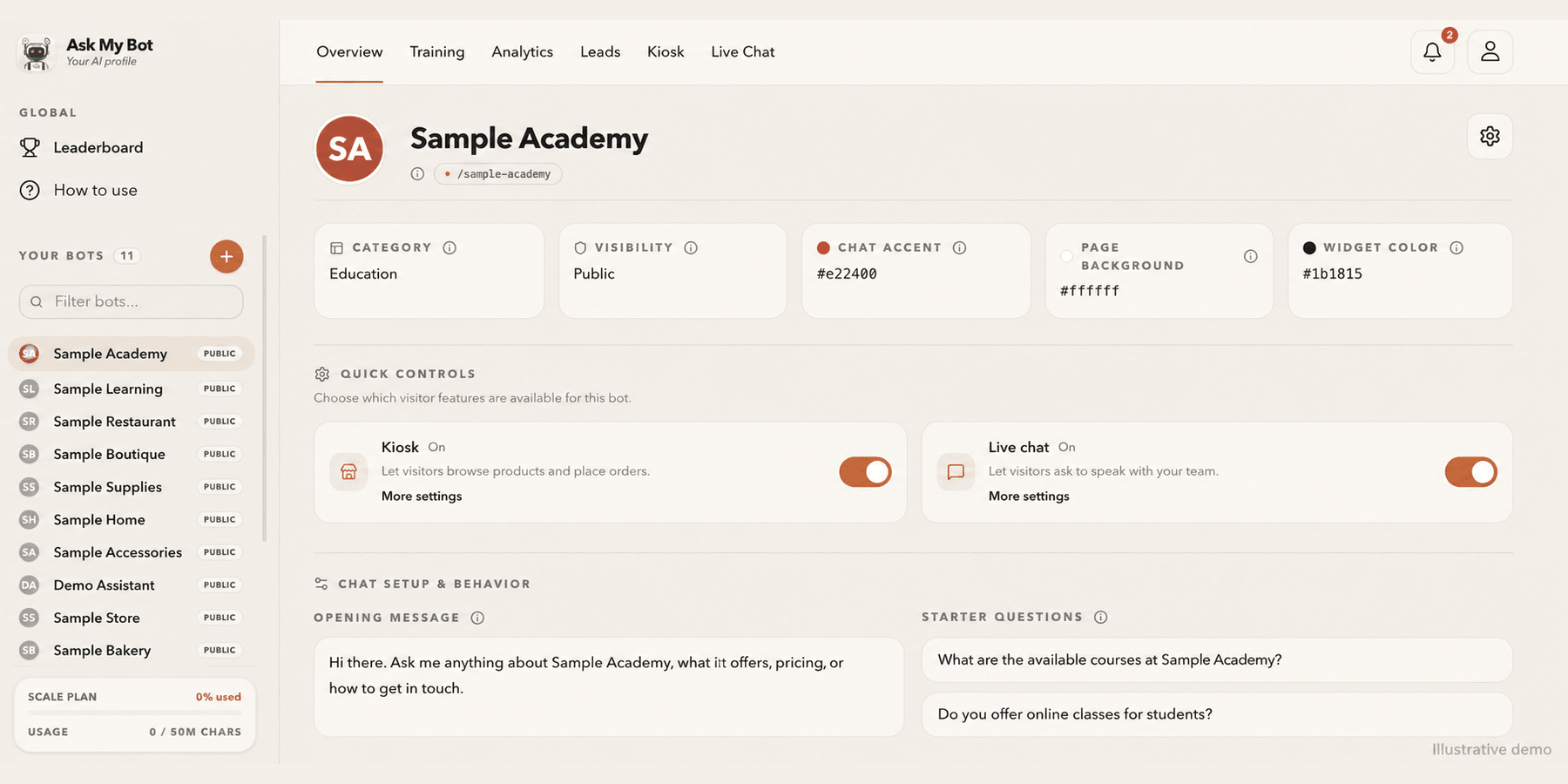
Customize your bot from Overview
Overview shows your bot at a glance, including whether Kiosk and Live Chat are on for visitors. Edit the name, logo, cover photo, appearance, opening message and starter questions in the bot's Settings tab.
Explore this workflow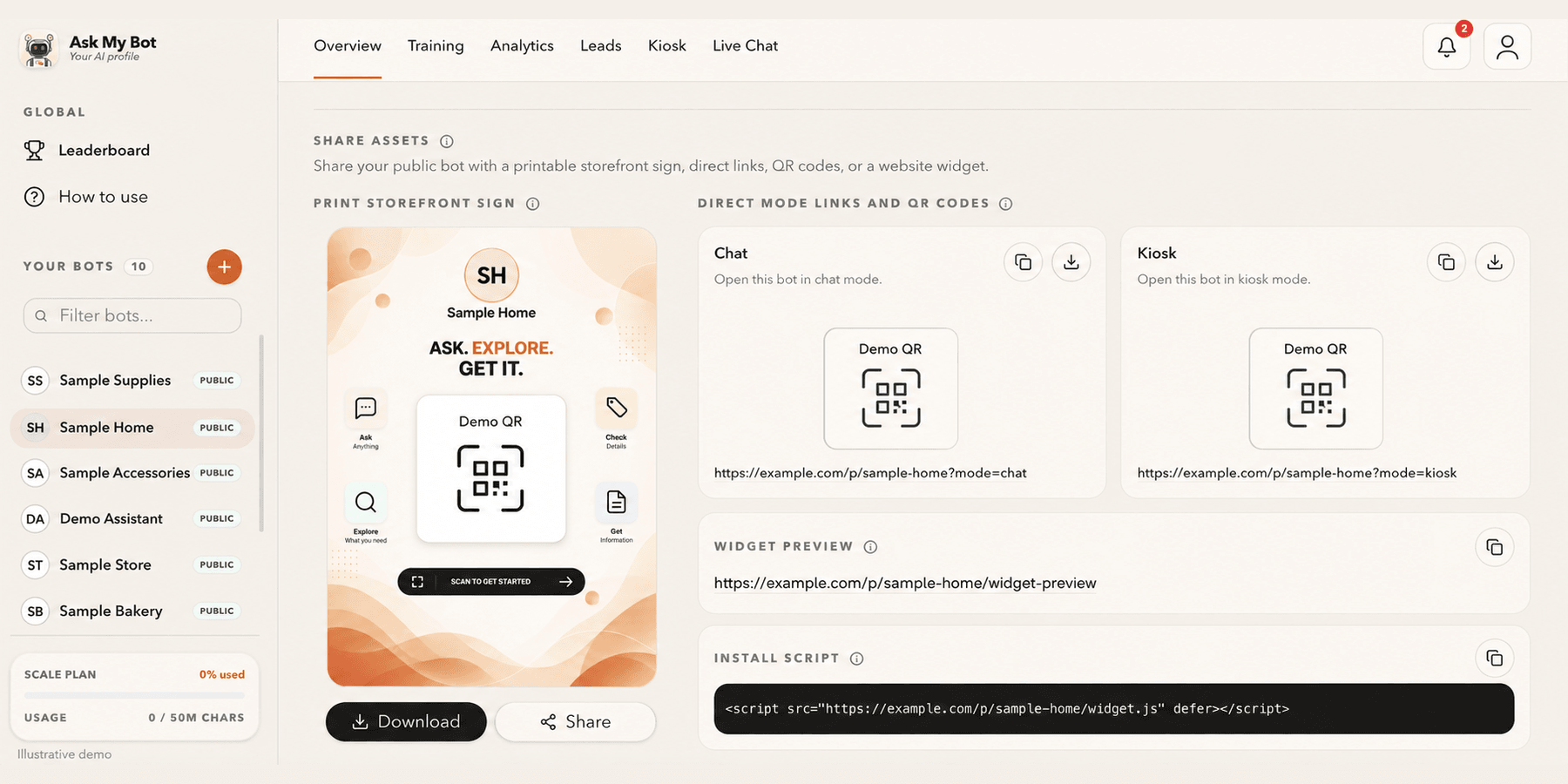
Share a link, QR code or website widget
Overview → Share assets provides one public link and QR code, a printable storefront sign and the website install script. The pictured bakery is fictional; copy working assets from your own bot.
Explore this workflow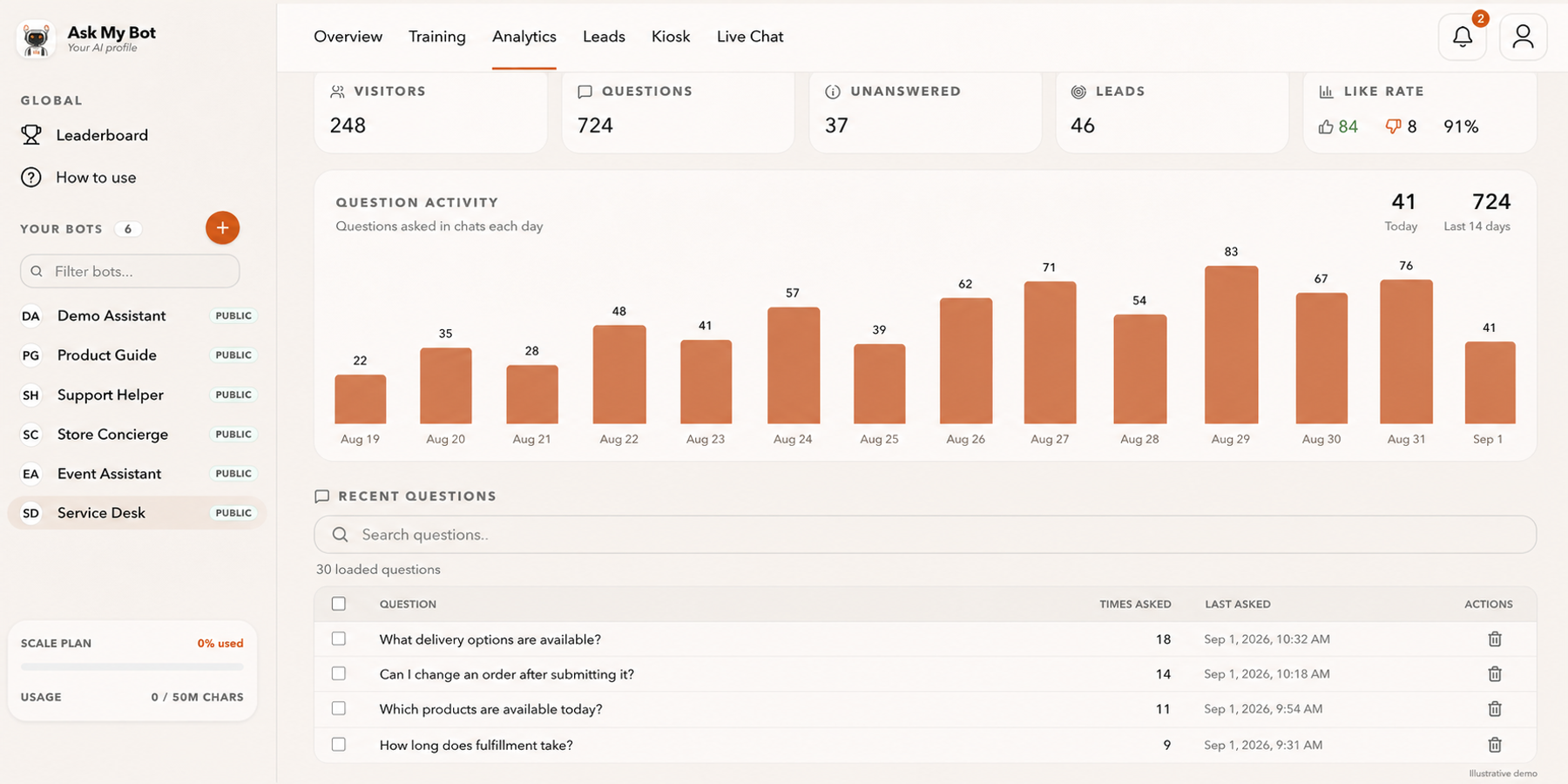
See how the business is doing
Analytics compares sales, orders, visits and conversion with the period before, on every active plan. The pictured numbers are fictional demonstration data.
Explore this workflow