What it does
Your widget answers questions from your trained content. When visitors clearly ask for a person, the widget queues them for your team or captures their contact details as a lead if nobody is available.
Embed a live chat widget on your website that answers questions first, escalates to your team when needed, and captures offline leads with full conversation context.
Your widget answers questions from your trained content. When visitors clearly ask for a person, the widget queues them for your team or captures their contact details as a lead if nobody is available.
Live chat handoff in the widget is available on Business and Scale plans. Free and Pro plans have the basic AI-only widget.
Copy the widget install script from your bot’s share assets, paste it into your website HTML, and the widget appears in the bottom-right corner with your configured colour and teaser.
The widget answers questions from your trained content before offering human escalation.
Visitors can type messages like 'talk to a person' to request human help without logging in.
Your team sees queued visitors in the Live Inbox with unread counts and agent presence tracking.
Agents reply directly to visitors from the workspace, with full conversation history visible.
If no agents are available, the widget asks for contact details and captures a lead with the transcript.
Set the widget type (icon only or icon with text), widget colour and proactive teaser in Settings → Bot → Website widget. The launcher sits in the bottom-right corner and moves above fixed bottom bars automatically.
The bot must be public and trained with your content (PDFs, website pages, pasted text, etc.).
Live chat widget capability is included on Business and Scale plans. Free and Pro have AI-only widgets.
Copy the widget install script from your bot's share assets and paste it into your website HTML.
Load your website page and test AI answers, then request a person to trigger the handoff flow.
Turn on Live Chat in Settings → Live Chat, set allowed domains in Settings → Bot → Website widget, invite your team in Settings → Bot → Access & team, and add webhooks in Settings → Integrations → Webhooks.
Yes. The same widget can be installed on multiple pages of your website. Visitors on different pages use the same bot and conversation state.
No. The widget works for anonymous visitors. They only provide contact details if no agents are available and the bot asks for lead capture.
Yes. Set the widget type (icon only or icon with text), widget colour and proactive teaser in Settings → Bot → Website widget. The launcher always sits in the bottom-right corner; visitors can tuck it away, and you can lift it with a bottom-offset attribute on the install script.
The widget asks the visitor for contact details and captures them as a lead with the full conversation history.
Not directly. If the visitor requests help, they enter a queue. The widget shows queued status or offline lead capture—no 'online' indicator.
The basic widget is available on all plans. Live chat handoff in the widget requires Business or Scale plans. Free and Pro plans have AI-only widgets.
Illustrative app views with fictional businesses, contacts and sample data. Select an image to view it full size.
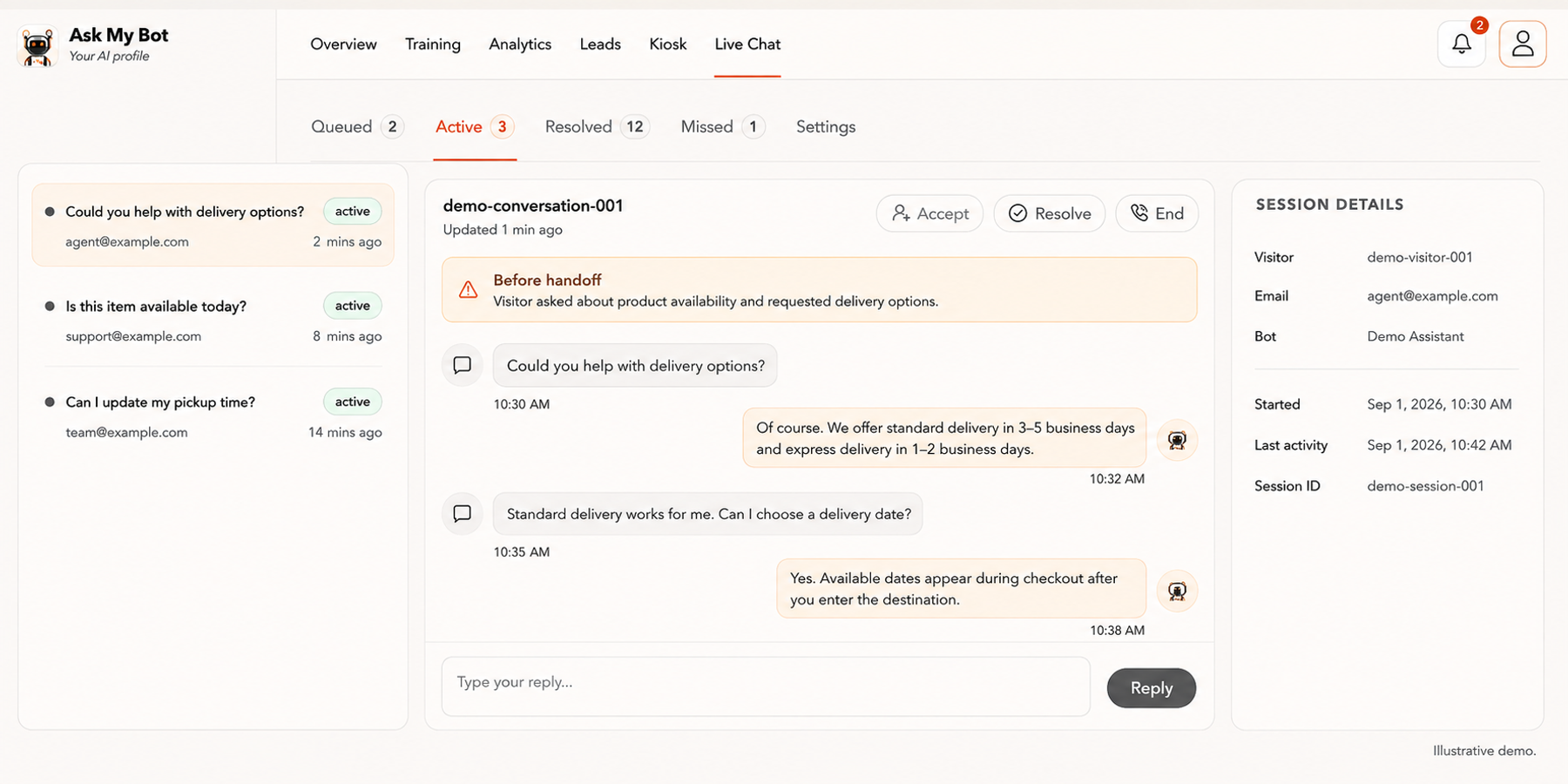
Live Chat brings active conversations, the selected transcript and session details together. On Business or higher, an available agent can accept a handoff, reply with context and resolve the conversation.
Explore this workflow