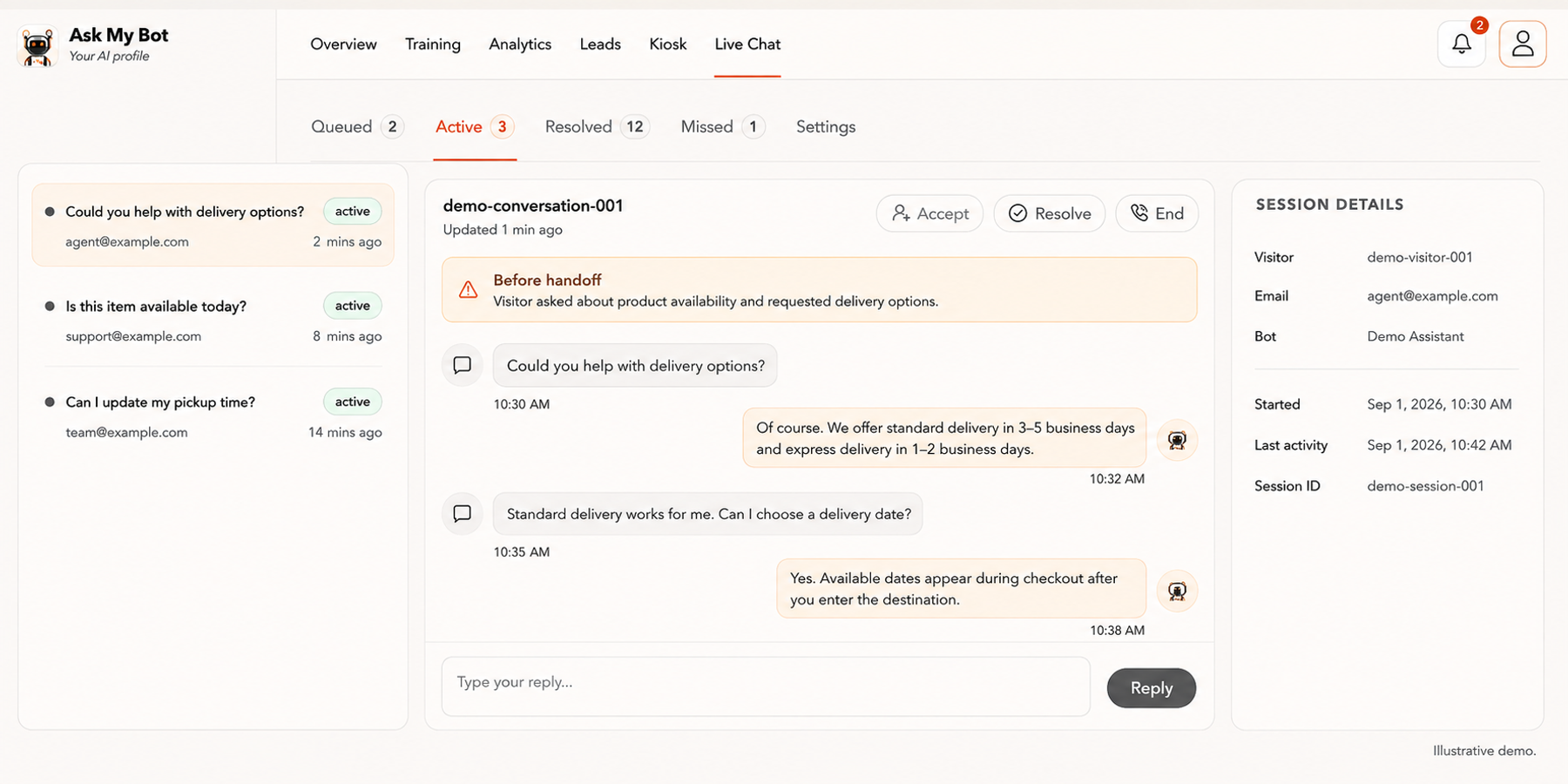
Follow these 9 steps to upgrade to Business or Scale, invite teammates, test visitor handoff, and deploy live chat on your website.
1. Upgrade to Business or Scale plan
Live chat handoff is available on Business ($69/month) and Scale ($149+/month) plans. Open the profile menu, choose Settings, then Plan & billing to upgrade.
- →Business plan: $69/month, 10 bots, 50,000 messages/month, includes live chat handoff and webhooks
- →Scale plan: $149+/month, 20 bots, 100,000 messages/month, includes live chat handoff and webhooks with pay-as-you-go overages
- →Live Chat follows the bot owner's plan, even when a teammate manages the bot
2. Create or select a public bot
Live chat handoff works on public bots, on the bot page and the website widget. Create a bot, train it with your content, and set it to Public in Settings → Bot → Access & team.
- →Train your bot with PDFs, website pages, images, pasted text, or Live API sources
- →Test AI answers before sharing the bot widely
3. Turn on Live Chat
Live Chat is off by default. Open the bot's Settings → Live Chat and switch Live Chat to On. The change saves straight away.
- →Turning it off later stops new handoffs but keeps Queued, Active, Resolved and Missed conversations
- →When it is off, the bot keeps helping in AI chat
4. Invite your team (optional)
In Settings → Bot → Access & team, enter a teammate's email under Team, choose Admin access and click Invite. Admins can accept and reply to conversations too.
- →New Live Chat requests appear in the notification bell and the browser tab count
- →Clicking a Live Chat notification opens the Live Chat workspace
- →Several teammates can be online for the same bot
5. Test visitor handoff
Open the public bot page or the widget and type a clear request such as 'Can I talk to a person?', 'Talk to a representative' or 'Connect me to support'. Common spelling mistakes still work.
- →If a teammate is online, the visitor joins the queue
- →If nobody is online, the bot asks for contact details instead and saves a lead
- →Asking whether the bot supports live chat does not start a handoff
6. Accept the chat in Live Chat
Open Live Chat in the workspace. Use the Queued, Active, Resolved and Missed filters, open a queued conversation, and click Accept.
- →Visitor info shows the status, what the visitor asked, how long they have waited and who is assigned
- →A queued chat moves to Missed if nobody accepts within 8 minutes
- →Stay signed in with the bot selected so you show as available
7. Reply, then resolve
Type replies while the conversation is active. The visitor sees them in their chat right away. Click Resolve when you're done, or End when the conversation must close.
- →You can see what the visitor asked and what the AI answered before the handoff
- →On a phone, the list and the conversation open as separate screens
8. Review missed chats as leads
Missed and offline chats are saved as leads with the full transcript. Find them in Leads, where you can update their status, export them or download transcripts.
- →The visitor is asked for an email or phone and any required details you set in Settings → Leads → Lead capture
9. Forward leads by webhook (optional)
To send leads, including missed live chats, to your CRM, the bot owner opens Settings → Integrations → Webhooks, adds an HTTPS endpoint and turns it on.
- →Payloads are JSON with lead details and lead.customFields
- →Ask My Bot shows the latest delivery result in webhook settings
10. Install the widget on your site
Copy the Install script from Overview → Share assets and paste it into your website. The widget now offers live chat on your live site.
- →Add your website under widget allowed domains in Settings → Bot → Website widget
- →The launcher sits in the bottom-right corner and moves above fixed bottom bars automatically
- →Test the widget on your live site by typing a handoff request